

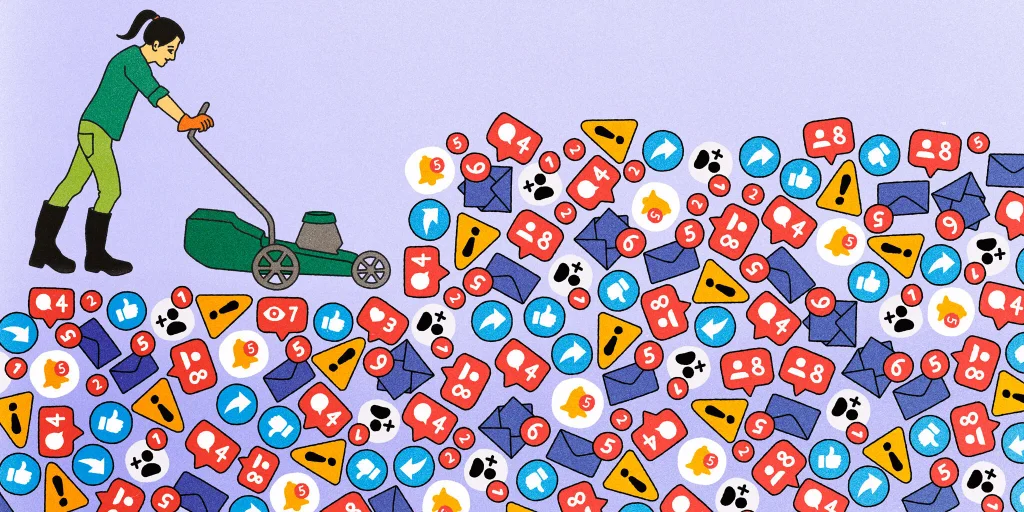
Most people rely on their phones to keep track of basically everything in their lives. That requires fielding a lot of incoming alerts and messages.
But let’s be honest: Most of them are unnecessary.
Between the notifications that are actually important, such as those for work emails or texts from friends, you’re also getting a lot of garbage, including updates about new shows on Netflix, DoorDash discount codes, and Instagram likes. All those vibrations can prompt you to pick up your phone more often than necessary. It’s distracting — and, at worst, it can lead to alert fatigue.
Your instinct might be to put your phone on Do Not Disturb and mute all of your notifications, but you can take a more nuanced approach — and find a bit of peace in your day — just by changing some settings.
Whether you own an iPhone or an Android phone, these six tips will help you keep your notifications in check and get only the alerts you actually want to see.
Delete any apps you no longer need
Before diving into customizing your notifications, sort through all the apps on your phone and delete those you don’t use anymore. Doing so automatically reduces the number of notifications you receive and makes it easier to adjust your settings later.
You can delete an app by long-pressing its icon and tapping the option to remove or uninstall, depending on your device.
Customize how your notifications appear
Unless your phone is face down or out of reach, resisting the urge to look at the screen every time it lights up is impossible. But you can limit the distractions by adjusting how alerts appear on the display.
On an iPhone, you have multiple ways to customize your notifications, including which apps you want to receive notifications from, the style in which alerts appear on your lock screen and home screen, whether previews appear, and more. For the simplest option, go to Settings > Notifications > Display As and choose Count.
Instead of seeing a list of all your notifications, you’ll see only the total number at the bottom of the screen. If you want to see each notification individually, you can manually scroll up on the lock screen. This approach makes your lock screen less overwhelming to look at, regardless of how many alerts you receive.
On Android, the steps vary depending on the phone you’re using. In the Settings app, search for “Lock screen” (on Pixel phones, it’s under “Display & touch”; on Samsung phones, go to Settings > Notifications). There, you can adjust how notifications appear on the lock screen, as well as whether they show up at all.
Schedule your notifications
Another way to limit distractions is to schedule your notifications to be delivered as summaries. This way, you’re alerted to everything at once — exactly when you want —instead of piecemeal, at any moment of the day.
On an iPhone, go to Settings > Notifications > Scheduled Summary and toggle on Scheduled Summary. Then, you can choose which notifications to include in the summary and when you want them delivered. (If there’s an app you can’t find but want to include, go to Settings > Apps, select the specific app, and toggle on Allow Notifications.) These notifications will also be organized by relevance, based on your frequently used apps.
On Google Pixel phones, you can turn on the Notification Organizer, which uses AI to silence and bundle low-priority alerts to minimize interruptions. You can customize which notifications to include and group, as well as which apps’ notifications to exclude. On Samsung Galaxy phones, you can go to Settings > Notifications > Sort and filter > Sort notifications and select By priority.
Create a custom Focus Mode
The Do Not Disturb feature on an iPhone is great if you want to mute all of your notifications and alerts. It’s one of the easiest ways, if not the easiest, to keep notifications from constantly popping up on your device.
But you can also choose from other presets, such as Work, Sleep, Reduce Interruptions, Commuting, and Driving, which each limit which notifications can get through your Do Not Disturb. Each option is automatically set to receive zero notifications, but you can customize them to allow certain apps to bypass the system, and you can schedule the modes to activate at specific times of day. For example, with Sleep mode, you can specify which contacts you’ll allow phone calls from in an emergency; with Work mode, you can choose to allow notifications from apps such as Gmail and Slack, while everything else stays silent.
If the presets aren’t quite doing it, you can also create your own Focus Mode. Swipe down on the right shoulder of the iPhone, tap Focus Mode, and then tap the plus sign labeled New Focus. Then, you can choose which notifications to silence, set a schedule, and customize the new mode, including rules for app alerts, phone calls, text messages, emails, and more.
Android phones have their own version of the mode. On Google Pixel phones, go to Settings > Digital Wellbeing. As on the iPhone, you have the option to customize the mode. Tap Focus and then choose when you want the focus mode to kick in and which apps you want to limit notifications from. On other Android phones, search for “Do not disturb” in Settings.
Adjust notifications for certain apps
Companies love sending push notifications, most of which are useless alerts intended to lure you into engaging with their apps. But you can pick and choose which apps you receive notifications from and silence notifications from the worst offenders.
On an iPhone, go to Settings > Notifications and scroll down to Notification Style, where you’ll see a list of all the apps you’ve downloaded to your device. Tap the app you want to disable notifications for and toggle off Allow Notifications.
On an Android phone, go to Settings > Notifications > App notifications (if you’re on a Pixel phone, tap All apps). You’ll see a list of all the apps you’ve downloaded, with the option to toggle off notifications on the apps of your choice.
Mute your notifications
You don’t have to overhaul your notifications in one go. If you’re indecisive or feeling overwhelmed about which apps to even tackle first, you can ease into it. Whenever you receive a notification, you can adjust the settings via the lock screen.
Swipe to the right on the notification on an iPhone, tap Options, and choose Mute for 1 Hour or Mute for Today. That way, you’re only temporarily changing the settings for each notification. To halt the notifications completely, in the same menu tap Turn Off.
Google Pixel phones have a feature called Notification Cooldown, which lowers the volume and minimizes alerts for up to one minute when it sees that you’re receiving a lot of notifications within a short time. You can check the alerts by pulling down the notifications menu from the top of the screen.
To turn it on, go to Settings > Notifications and scroll down to find Notification Cooldown under the General tab. We hope this feature comes to more phones, because it offers an easy way to limit notifications automatically without your having to pick up your phone.
- Credits: The New York Times
- Author: Brenda Stolyar
- Illustration: Dana Davis